

Why Use a Windows Bulk URL Checker Instead of an Online Tool?
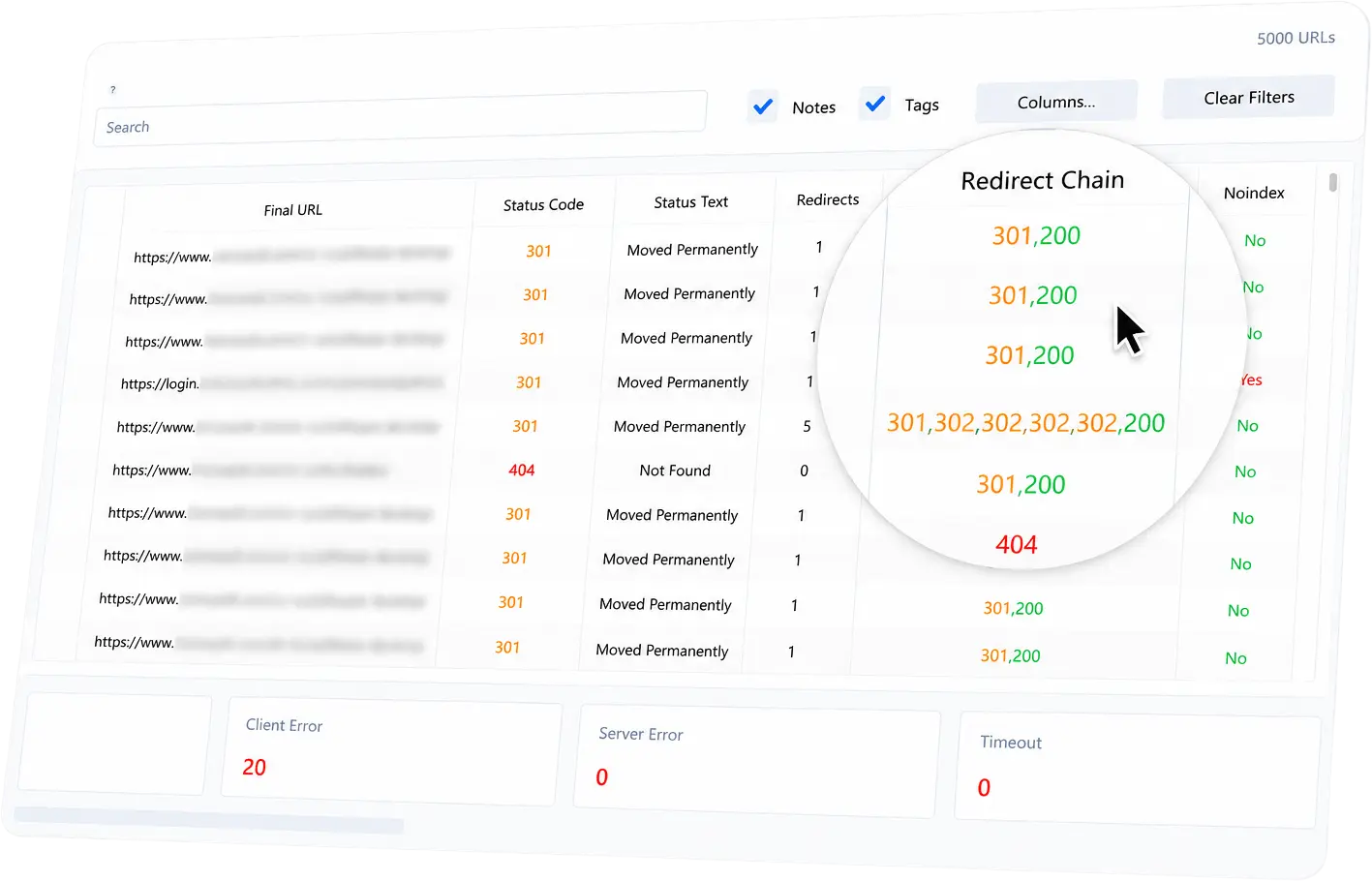
Online URL checkers are useful for quick one-off checks, but they can become frustrating when you need to audit hundreds or thousands of URLs. Browser-based tools often have limits, queues, upload steps, slow exports or a workflow that breaks down once you need to filter, rescan, tag and report on a large URL list.
A Windows bulk URL checker gives you a different workflow. Instead of pasting URLs into a web form and waiting for a browser tab to finish, you can build a scan list on your desktop, run bulk checks, review results in a table, save your work and export clean CSV reports when you are ready.
When online tools are enough
An online checker can be perfectly fine when you only need to check a few URLs.
For example, a browser-based tool may be enough if you want to:
-
Check one redirect.
-
Confirm whether a single URL returns
200or404. -
Quickly inspect one HTTP status code.
-
Share a small one-off result with someone else.
For small checks, speed of access matters more than workflow.
When a desktop URL checker makes more sense
A desktop workflow becomes more useful when the job is bigger than a quick lookup.
Use a Windows bulk URL checker when you need to:
-
Check large URL lists repeatedly.
-
Review redirect chains and final URLs.
-
Import URLs from TXT or CSV files.
-
Discover URLs from XML sitemaps.
-
Filter status codes, errors and content types.
-
Save sessions and continue later.
-
Add notes or tags during an audit.
-
Export a tailored CSV report for developers, clients or QA teams.
These are not just “check this URL” tasks. They are audit workflows.
Why local workflow matters
When you are working on technical SEO audits, migrations or QA checks, the URL list itself often matters. It may come from a client export, analytics data, a redirect map, a sitemap, a CMS report or an internal spreadsheet.
Keeping the workflow on your Windows desktop can make the process easier to control. You can import the list, scan it, filter it, tag problem rows, add notes, save the session and reopen it later without rebuilding the audit from scratch.
URL Verifier Pro is designed around that kind of workflow. It is not trying to be a full SEO suite or a cloud crawler. It is focused on verifying known URLs and sitemap URLs quickly, clearly and repeatably.
Key checks a desktop tool should support
For most technical URL audits, the most useful checks include:
-
HTTP status code
-
Status text
-
Final URL
-
Redirect count
-
Redirect chain
-
Response time
-
Content type
-
Headers
-
Robots status
-
Page title
-
Meta description
-
Canonical URL
-
Noindex and nofollow signals
-
Error details
A desktop app can keep these results in one working table instead of forcing you to copy and paste between browser tools, spreadsheets and one-off exports.
Why redirects are easier in a desktop workflow
Redirect checks are one of the biggest reasons to use a dedicated tool.
During migrations, the first status code is not enough. You need to know where the URL finally ends, how many hops it took, whether there was a loop and whether the final destination is correct.
A good desktop workflow lets you sort by redirect count, filter redirecting URLs, tag wrong destinations and export only the redirect issues that need action.
Why CSV exports are cleaner
Online tools often export everything they collect, whether you need it or not. URL Verifier Pro exports the visible columns you choose, so you can create focused reports.
For example:
-
A developer report may only need status code, final URL, redirect chain and error details.
-
An SEO report may need metadata, canonical URLs and noindex flags.
-
A migration report may need old URL, final URL, redirect count, redirect chain and notes.
That makes the exported CSV easier to use.
Desktop does not mean complicated
The advantage of a desktop URL checker is not that it has more buttons. It is that the workflow stays together.
A focused Windows app gives you:
-
One place to import URLs.
-
One table to review results.
-
Filters for common audit tasks.
-
Notes and tags for follow-up.
-
Sessions for ongoing work.
-
CSV export when the report is ready.
For small checks, an online tool may be enough. For recurring audits, migrations and large URL lists, a native Windows workflow is usually easier to manage.
Suggested workflow
-
Import your URL list from a TXT or CSV file, or discover URLs from an XML sitemap.
-
Run the scan.
-
Filter redirects, errors, blocked URLs or slow responses.
-
Review final URLs and redirect chains.
-
Add notes and tags for anything that needs follow-up.
-
Save the session if the audit will continue later.
-
Export a clean CSV report using only the columns you need.
That is the difference between a quick checker and a working audit tool.