
How to Check Canonical Tags in Bulk
Canonical tags help search engines understand which URL should be treated as the preferred version of a page. During migrations, redesigns, CMS changes and technical SEO audits, canonical tags can easily point to the wrong URL, disappear from important pages or remain set to staging domains.
A canonical URL checker helps you review canonical tags across a large URL list instead of checking pages one at a time.
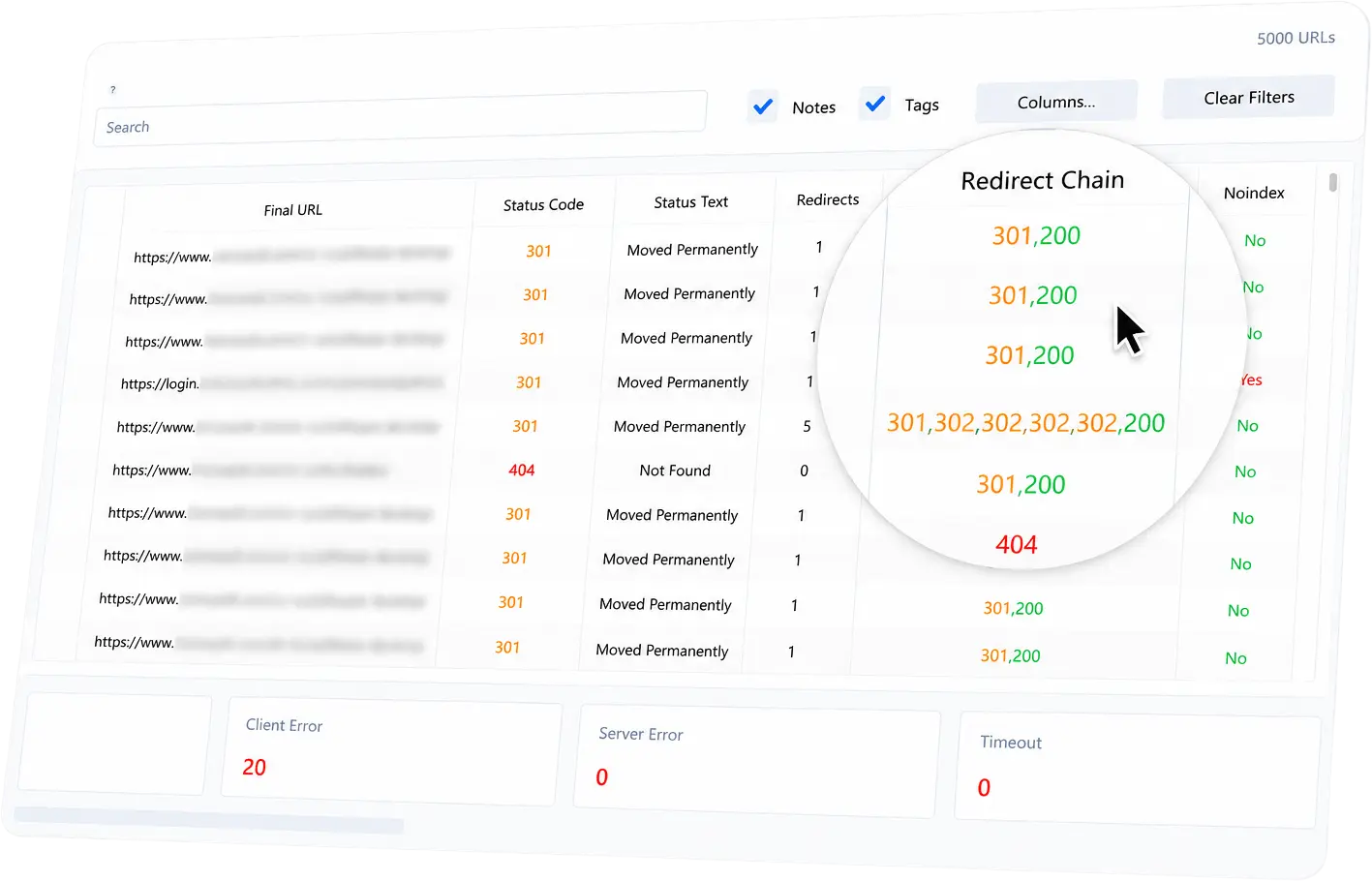
URL Verifier Pro can scan URLs in bulk and extract canonical URLs alongside status codes, final URLs, redirects, metadata and robots signals. This makes it easier to understand whether each page is reachable, indexable and pointing to the expected canonical destination.
Why canonical checks matter
A canonical tag is not a redirect. It is a signal.
That means a page can return 200 OK, look fine in a browser and still send the wrong canonical signal. If that happens across many pages, it can create indexing confusion and make audits harder to interpret.
Bulk canonical checks are useful for finding:
-
Missing canonical tags.
-
Canonicals pointing to old URLs.
-
Canonicals pointing to staging or development domains.
-
HTTP canonicals on HTTPS pages.
-
Canonicals pointing to redirecting URLs.
-
Canonicals pointing to
404or non-indexable pages. -
Pages canonicalising to unrelated destinations.
-
Sitemap URLs that canonicalise somewhere else.
Recommended canonical audit workflow
-
Build your URL list from a sitemap, crawl export, CMS export, analytics report or manual list.
-
Add the URLs to URL Verifier Pro.
-
Run the scan with metadata columns available.
-
Show the Original URL, Final URL, Status Code, Redirect Chain, Canonical URL, Noindex and Robots columns.
-
Filter out failed URLs first so you can separate fetch problems from canonical problems.
-
Review pages where the canonical URL is blank.
-
Search for staging domains, old domains, HTTP URLs or unexpected folder paths.
-
Export the rows that need SEO or developer review.
What to check first
Start with the highest-risk patterns.
Canonical is missing
A missing canonical is not always a problem, but it is worth reviewing on important pages, duplicate templates, parameterised URLs and migration-critical URLs.
Canonical points to a redirect
If the canonical URL redirects, update the canonical to point directly to the final preferred URL where possible.
Canonical points to a different domain
This can be intentional for cross-domain canonicalisation, but it should be checked carefully. Accidental staging, preview or old-domain canonicals are common after launches.
Canonical conflicts with the sitemap
If a URL appears in an XML sitemap but canonicalises to another URL, decide whether the sitemap should list the canonical target instead.
Canonical conflicts with noindex
A page that is noindex and also canonicalises elsewhere needs careful review. The intended indexing signal should be clear.
Useful columns for a canonical audit
A focused canonical report often includes:
-
Original URL
-
Final URL
-
Status code
-
Redirect chain
-
Page title
-
Canonical URL
-
Robots meta tag
-
Noindex flag
-
Content type
-
Error details
-
Notes
-
Tags
You do not need every column in every report. Show only the fields that help the person receiving the CSV understand the issue.
Use tags to organise fixes
Canonical issues often need review before action. Use tags such as:
-
missing canonical -
wrong canonical -
staging canonical -
canonical redirects -
sitemap mismatch -
needs SEO review -
fixed
Add notes where the expected canonical URL is known. This makes the exported report more useful for developers and content teams.
Important limitation
URL Verifier Pro extracts metadata from the HTML response. It does not render JavaScript. If a site injects canonical tags only after page load, direct HTTP extraction may not see them.
That is still useful information, because it shows what is present in the initial HTML response returned by the server.
Final checks
After fixes are made, reopen your saved session or import the same URL list again. Rescan the affected rows, filter by your canonical tags and confirm that the Canonical URL column now matches the expected result.